
PREV_LEC NEXT_LEC
Complete dmesg tutorial:
Hello students welcome to Complete dmesg tutorial, this is part of free linux linux kernel development course by embeddedpathashala. Son in this lecture i will introduce you to dmesg and help you in understanding different commands used in dmesg.
when you are working in linux kenrel development embedded linux or device driver roles understanding dmesg is highly required. dmesg is curcial debugging tool in linux environemnt especially in kernel.
Dmesg will allow developers to analyse the kernel messages which are stored in linux kernel ring buffer, the kernel mesages include kernel boot messages, hardware detection log information, device driver infomation, kernel warning messages, kernel error messages, module loading and module unloading infoamtion.
when ever you print something using printk() those messages are stored in a kernel ring buffer and we can read them using the dmesg command.
What is kernel ring buffer?
Now let us understand what is kernel ring buffer and why we need kernel ring buffer.
kernel ring buffer is a temporary memory area inside the kernel used to store the kernel log messages. now let us see what are characteristics of kernel buffer.
Characteristics of kernel buffer
kernel buffer is a fixed size buffer, so old messages are alwasy overwritten when the buffer become full. It stores the messages from kernel and drivers and module insert and module remove and other kenrel related information. It is used during boot process before filesystem is mounted.
Why ring buffer is needed?
so during the system boot kernel starts executing and hardware detection begins and driver initialization starts and kenrel prints the log messages. there is a challenge here file system is not yet mounted, so kenrel can not write the logs into files. To overcome this problem linux stores the logs in ring buffer, later syslog daemon reads these logs and saves them into files. so with out ring buffer we will loose all the boot logs.
Basic dmesg command:
dmesg just run this command in your linux shell in root, and you will see all the kernel logs.
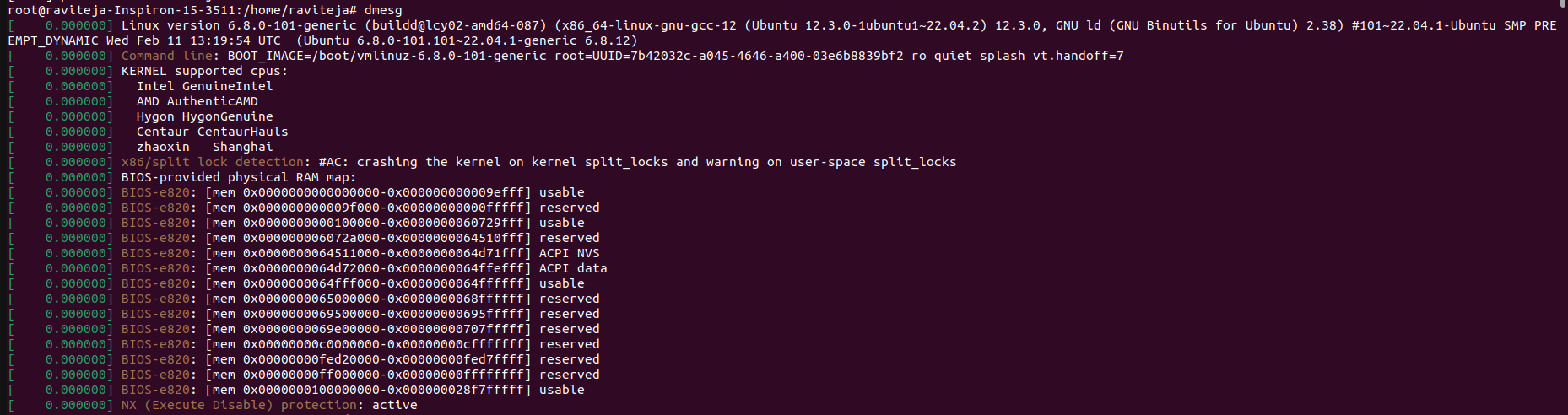
so if you see the above image you can see that these messages include the time stamps to show which event occured at what time. we can know all the information after boot time.
Clearing the kernel ring buffer
so sometimes when debugging your kernel modules or drivers we feel like deleting the old logs as they may be disturbing our debugging purpose. so you can use the below code for clearing your ring buffer contents.
sudo dmesg -c print and clear dmesg, so what happens here is we will print all the kernel messages then we will clear the ring buffer after printing so now the ring buffer is free, now if you run
dmesg you will not see previous logs, same this is explained the above video so please have a look.
Clear ring buffer with out printing
sudo dmesg -C -C this is the changes when compared to above message, so when you give the above command this instantly clears the ring buffer and it does not display any messages. This will help you when you want to start fresh debugging. when you are inserting a fresh module give this below command.
   sudo dmesg -C
   sudo insmod hello.ko
   dmesg
now only logs related to newly inserted module are shown
Removing Time stamps:
sometimes when debugging the kernel logs time stamps make analysing logs difficult, so then to remove timestamps we can follow below command
 sudo dmesg -t
 sudo insmod hello.ko
 dmesg
now timestamps are removed.
Human readable time stamps:
till now we only see kernel time stamps this represents the seconds since boot, but we can not understand the kernel time stamps. so if we want to print the kenrel time stamps in human readable format you can give below command and you will see the kernel logs in human readable time stamps.
dmesg -T -T is to represent in human readable time stamps
[Mon Mar 10 10:20:11 2026] USB device detected [Mon Mar 10 10:20:12 2026] Network interface initialized example for human readable time stamp, but always remember sometimes this time stamps are slightly inaccurate because it converts the kenrel uptime to system time.
Display log levels
the linux kenrel messages you see in debug logs have different log level so let us see what are different logs levels that are available in linux kenrel logs
emerg -> to display emergency messages
alret -> to trigger alert messages
crit -> to display critical messages
err -> to display error messages
warn -> to display warning messages
info -> to display informatioon messages
debug -> to display debug messages
dmesg -x to display log messages
Combining messages:
You can combine differnet options into a single command and see the behaviour for example:
dmesg -Tx human readable time stamps and log levels
Log filtering:
so if you want to filter out any specific logs then you can use the below format, for example
dmesg -l err,warn,info above message prints only the error messages, warning messages, informations messages. you can add any number of levels separated by commas.
Live monitoring of logs:
when you are debugging some kernel level issue then you might want to see live logs so to monitor kernel logs in real time you can use below command.
dmesg -w or you can run in background by giving
dmesg -w & now you can can do any operations on kenrel and you can see the live logs on screen, this will be extremely usefule when you are working in kernel development or device driver development roles.
Searching inside dmesg
if you want to search something in dmesg you can use grep
dmesg | grep usb
only logs containing that particular string will be printed
Limiting output
When you want to display only last few messages then you can use below command.
dmesg | tail if you want to print 20 logs
dmesg | tail -20 log limitation
What is syslog?
syslog is a logging system in linux the helps in collecting the messages from kernel, system devices, applications. it stores the collected logs in the files under this path:
var/log/
Checking syslog daemon
to check whether syslog daemon is running or not pls give below command
ps -ef | grep syslog example output
root 1056 1 0 10:00 ? 00:00:00 rsyslogd syslog helps in reading the kernel ring buffer periodically and writes logs to files.
Kernel logs file:
/var/log/kern.logkernel are usually stored here, here you can see the kernel logs stored permanently.
Relationship between dmesg and syslog
 Kernel printk()
      ↓
Kernel Ring Buffer
      ↓
dmesg reads messages
      ↓
syslog daemon reads buffer
      ↓
Logs stored in /var/log/kern.log
flow of dmesg and syslog,
 | Command             | Description                   |             |
| ------------------- | ----------------------------- | ----------- |
| `dmesg`             | Show kernel messages          |             |
| `dmesg -c`          | Print and clear buffer        |             |
| `dmesg -C`          | Clear buffer without printing |             |
| `dmesg -t`          | Remove timestamps             |             |
| `dmesg -T`          | Human readable timestamps     |             |
| `dmesg -x`          | Show log levels               |             |
| `dmesg -Tx`         | Timestamp + log level         |             |
| `dmesg -l err,warn` | Filter log levels             |             |
| `dmesg -w`          | Live monitoring               |             |
| `dmesg              | grep usb`                     | Search logs |
summary of dmesg flags.
Hope you have learnt about dmesg, in next lectures we will see more topics related to kenrel development.
Free learning to all !!
EmbeddedPathashala.
1 Comment